
One visit, from check-in to checkout.
Every step of an appointment happens in the same program. Here is each desktop screen in the order your day uses them.
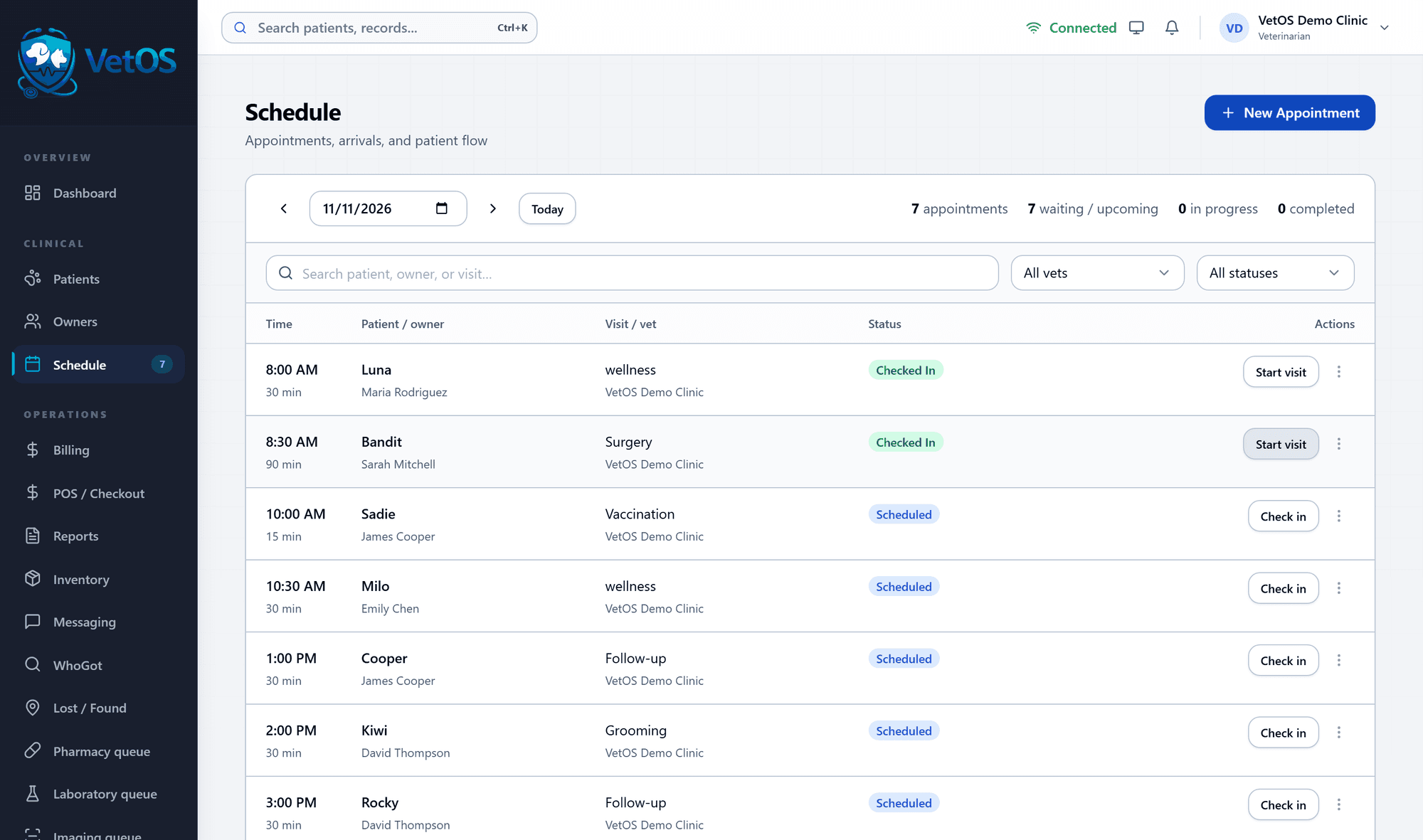
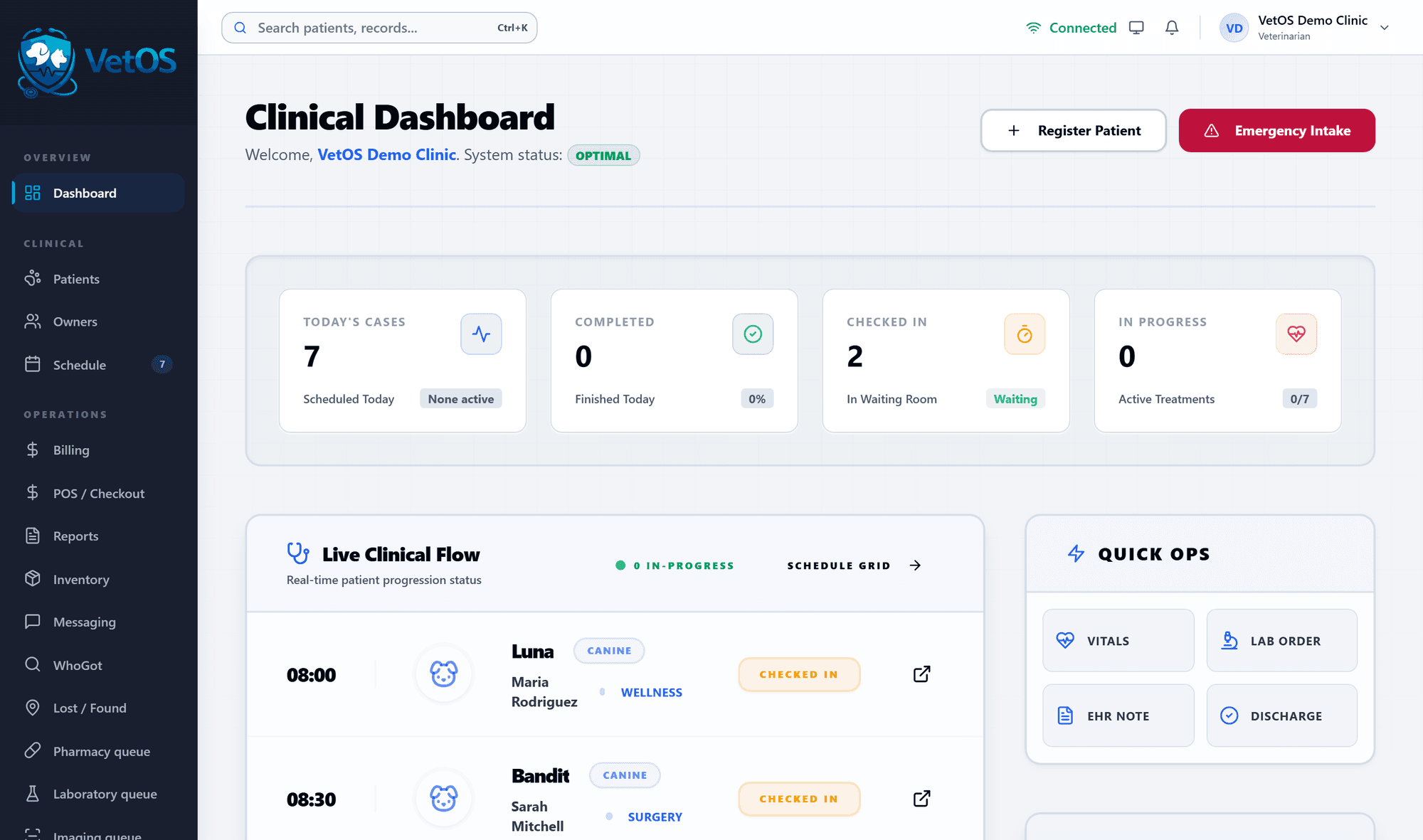
The schedule runs the front desk. The dashboard shows the day.
On the schedule, each row is a visit: the time, the patient, the owner, the kind of visit and where it stands. Check in on arrival, then start the visit when the room is ready.
The dashboard counts today’s cases, who is checked in and who is being seen, and lists each patient with their status. Vitals, a lab order, a note and discharge are one click from there.
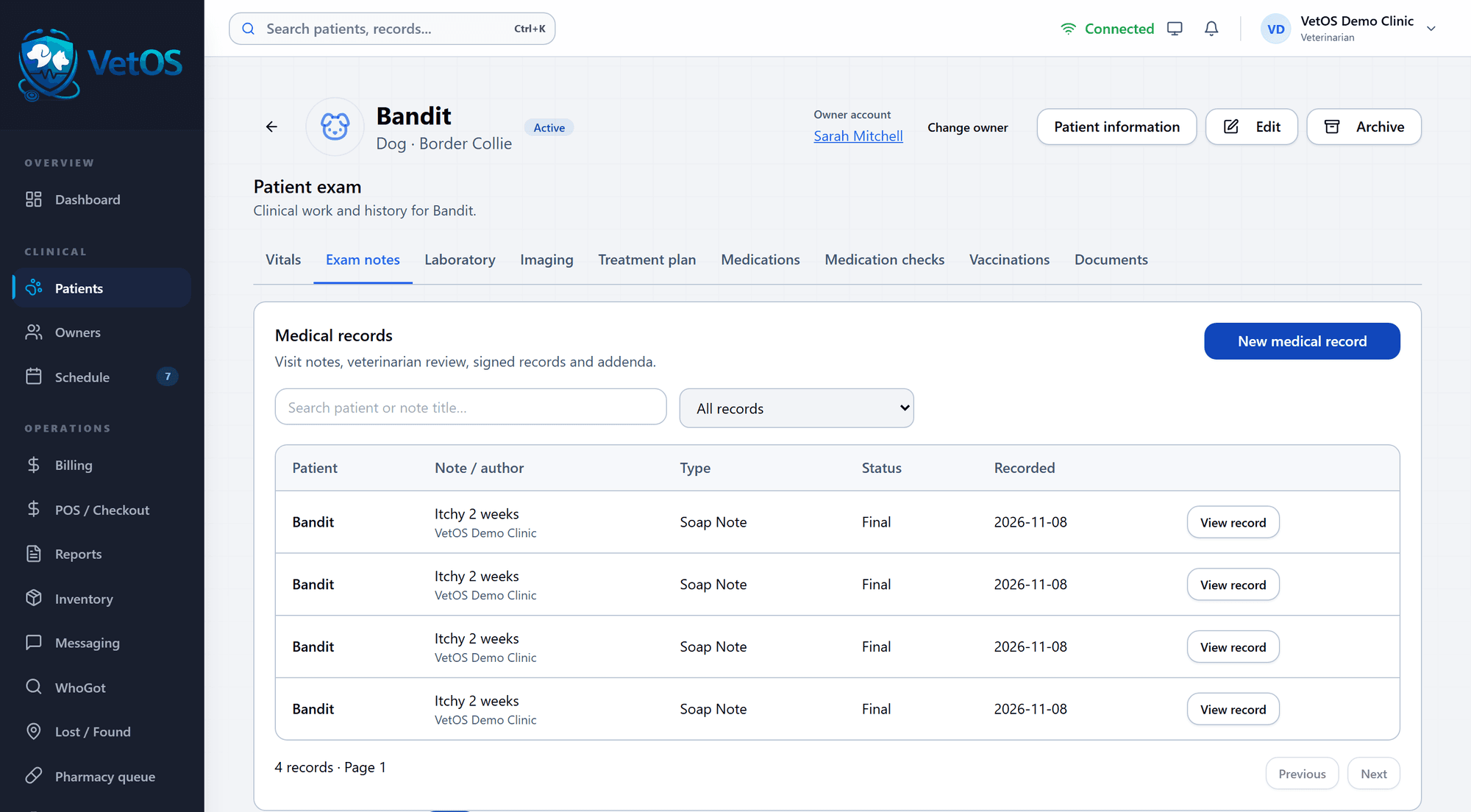
One patient screen for the whole exam.
Vitals, exam notes, laboratory, imaging, treatment plan, medications, medication checks, vaccinations and documents are tabs across the top of the patient.
Exam notes are kept as medical records with their author, type and status. A note marked final stays in the record as it was written.
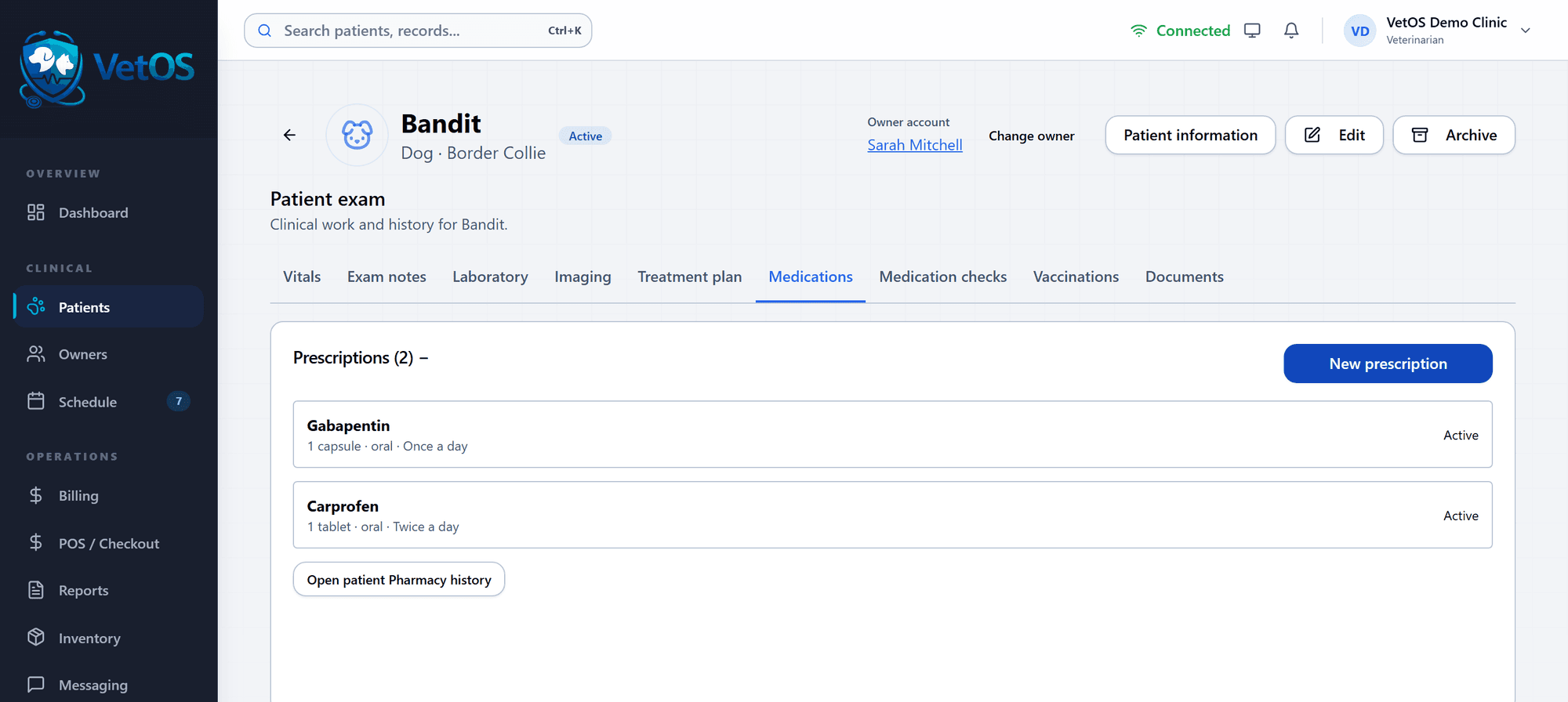
Prescriptions sit beside the notes.
The Medications tab lists what the patient is on, with the dose, the route and how often. A new prescription starts from the same tab.
VetOS records the prescription the veterinarian writes; it does not calculate or suggest doses on the desktop. Dispensing is recorded separately, so the pharmacy list and the inventory count stay in step.
When it’s an emergency, the paperwork waits.
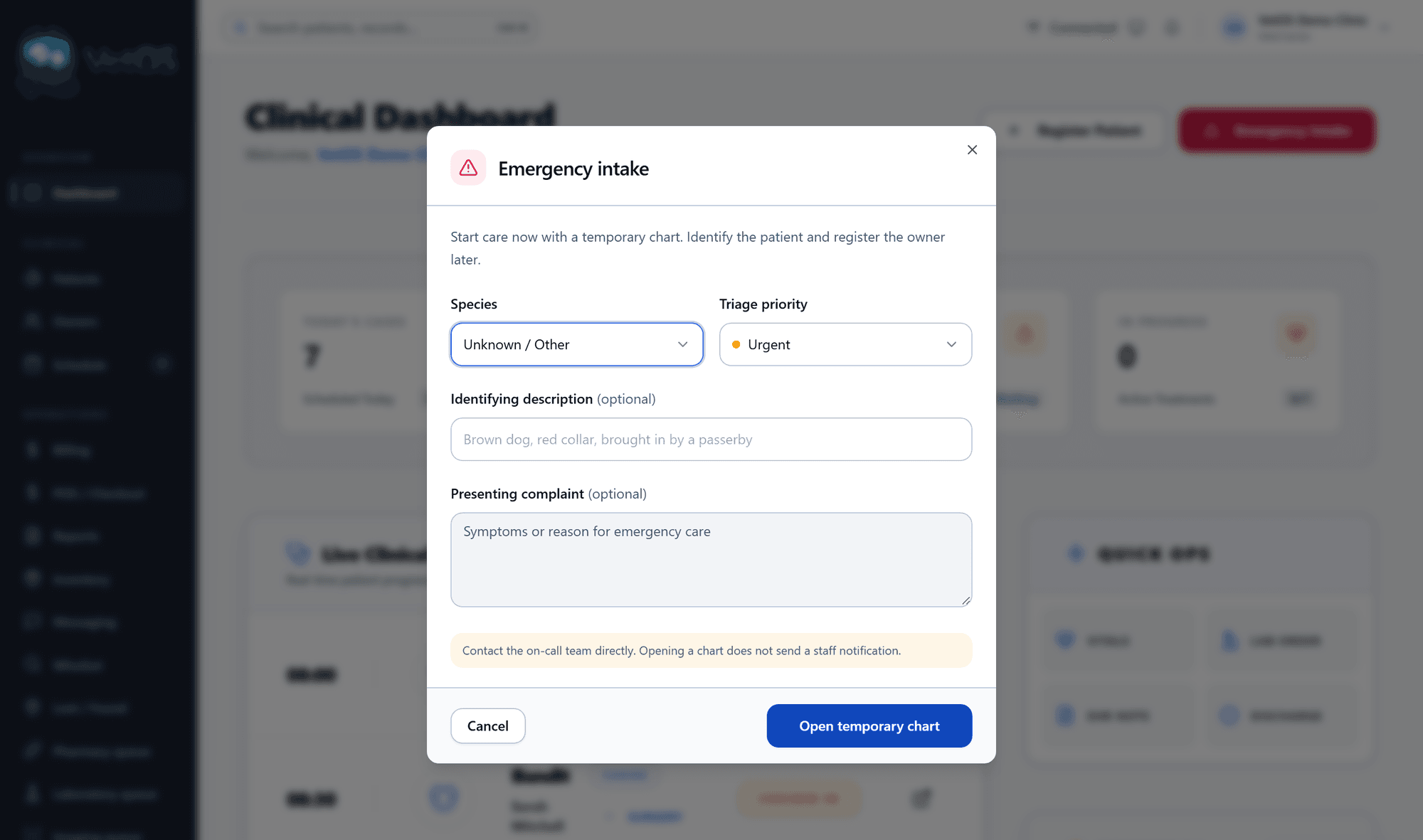
The red Emergency Intake button on the dashboard opens a temporary chart. Choose the species and the triage priority, and start care.
A description and the presenting complaint are optional. Identify the patient and register the owner later, on the same chart.
Exam complete sends it to the counter.
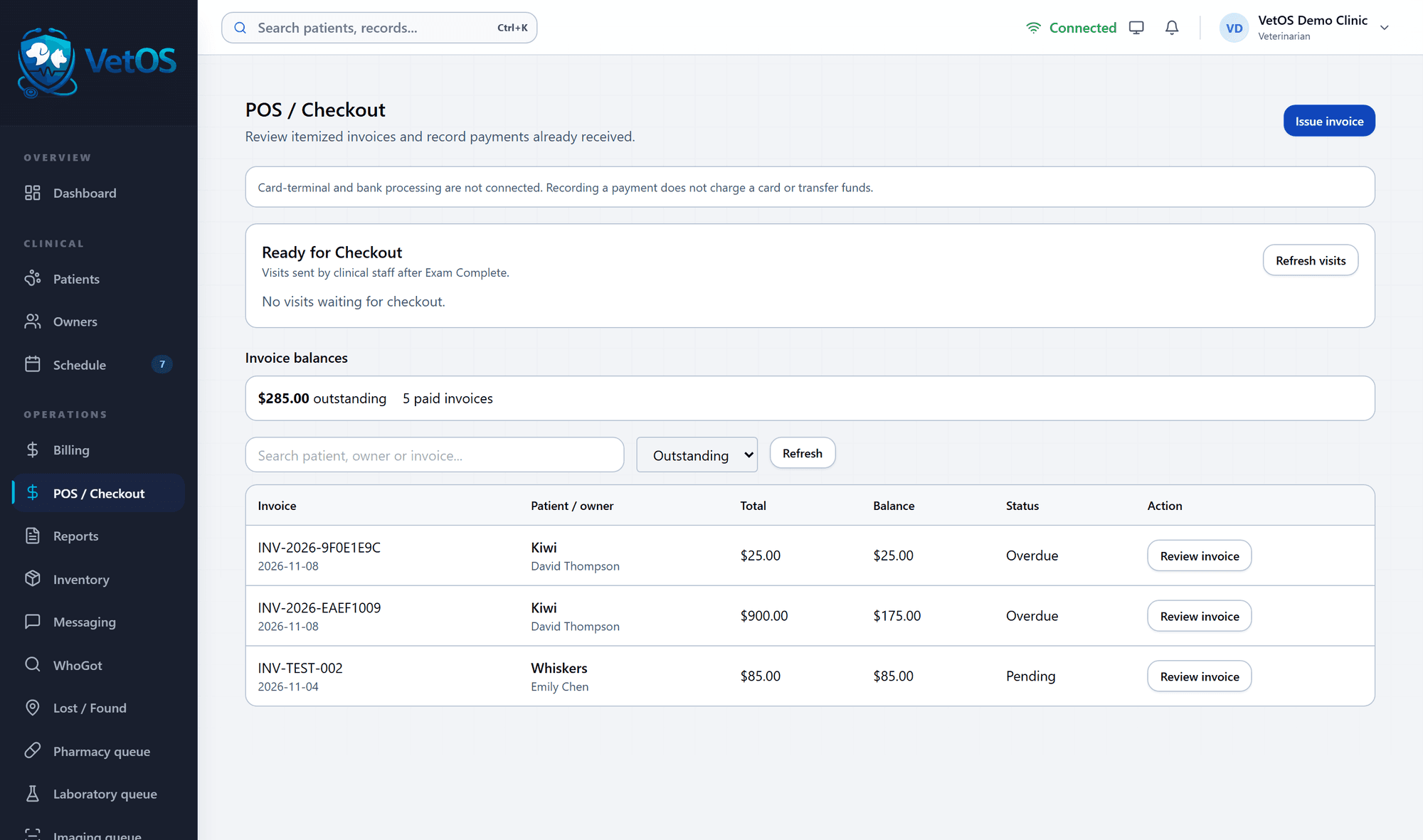
When the vet marks the exam complete, the visit appears on the front desk’s ready-for-checkout list. Nobody has to walk a clipboard up front.
Checkout also lists every invoice with a balance, so the front desk can see what is overdue while the owner is standing there.
The same chart on a phone, for the exam room.
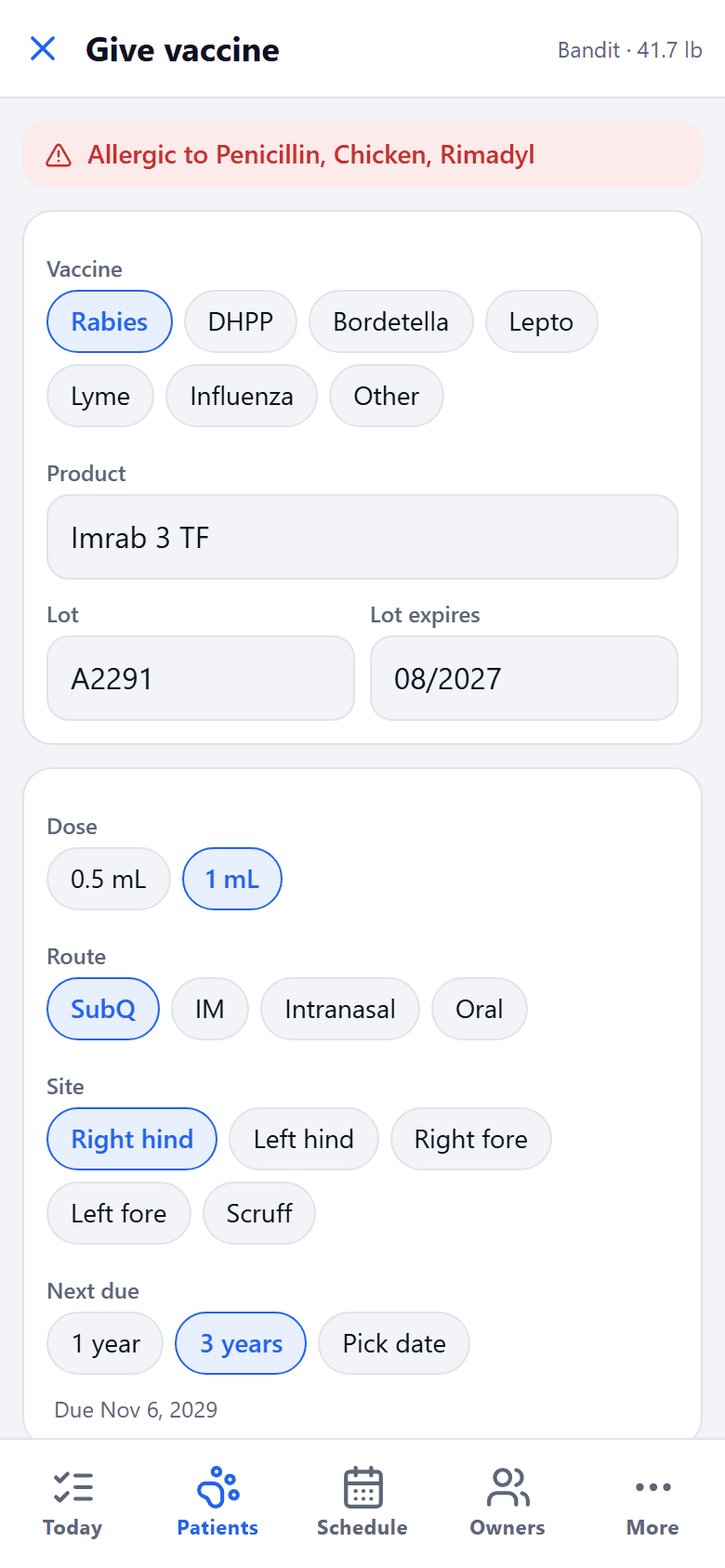
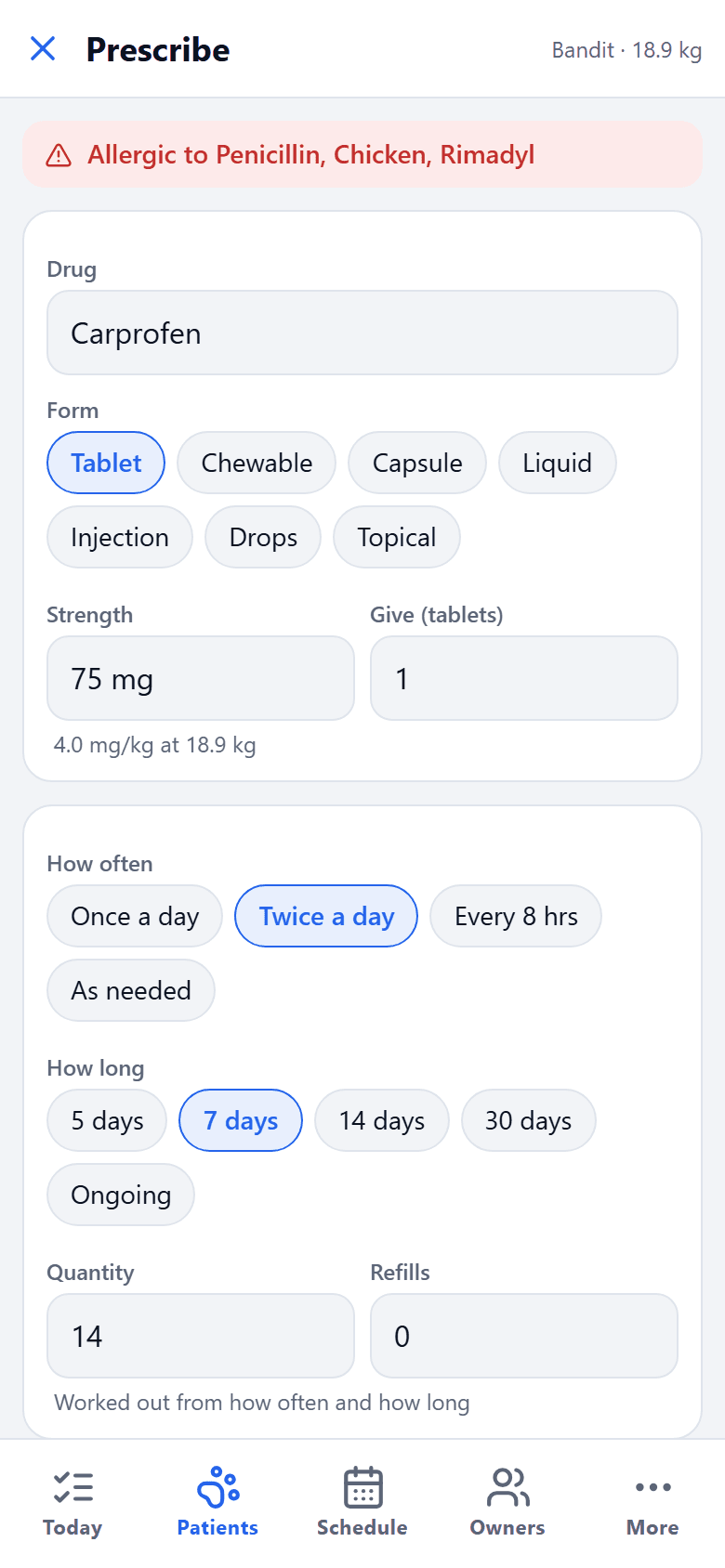
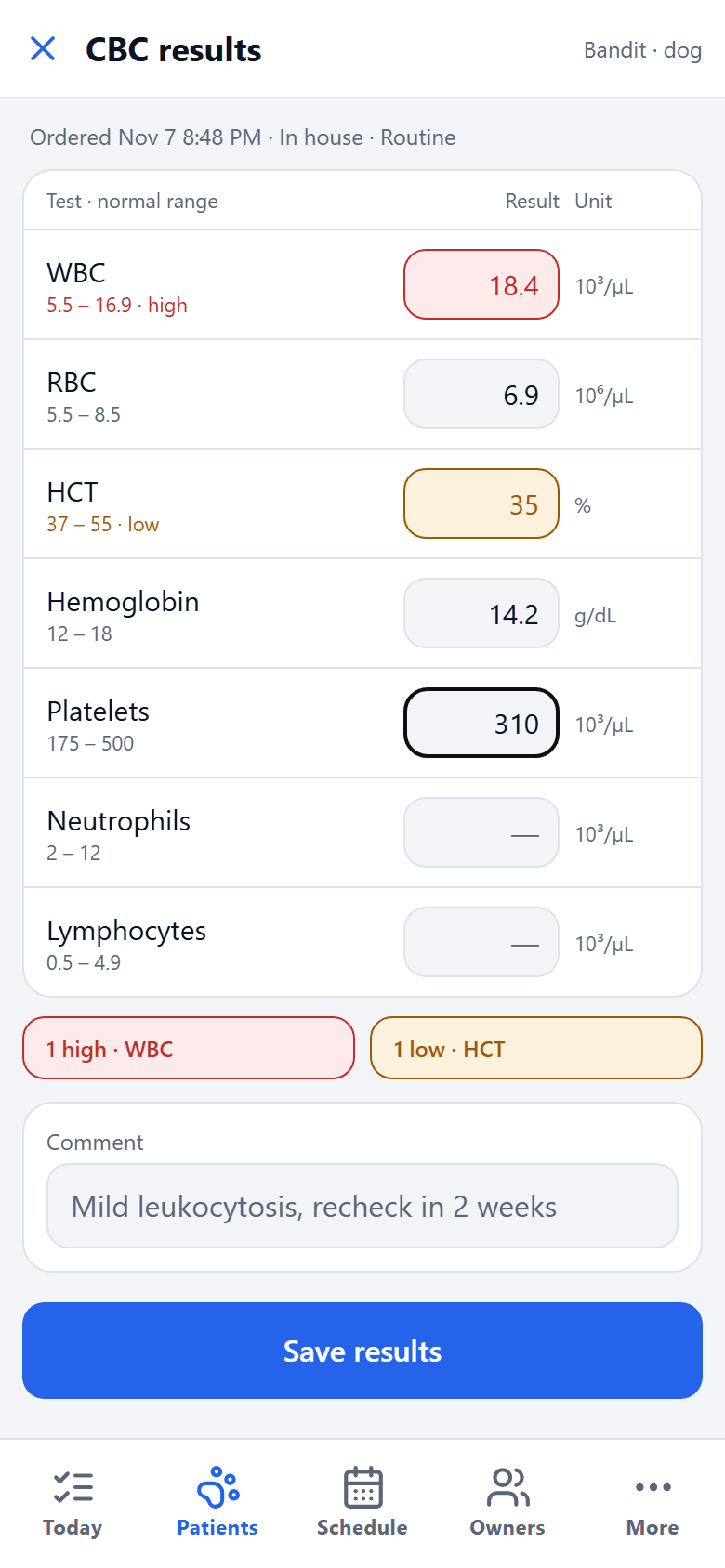
The VetOS phone app works on the same records. Give a vaccine, write a prescription or enter lab results standing next to the patient, with known allergies in a red bar at the top.
The visit is done. Now the paperwork and the bill.
Estimates, invoices, insurance claims and printed forms come from the same records.
See it with your own clinic in mind.
Tell us about your practice, whatever its size, and we’ll walk you through VetOS on a call.
Ask for a walkthrough